A macro is a series of recorded or coded commands you can run to complete tasks more quickly. Macros allow you to condense complex Quick3270 commands into a single command or keystroke.
There are two ways to create a macro with Quick3270. You can record the keystrokes you enter as you’re working, and/or you can use an editor in conjunction with the Quick3270 Macro Language to code your macro.
To automate a series of tasks.
Instead of entering your user ID, password, and pressing the ENTER key each time you log on to your mainframe account, you can automate the process with a macro.
To automate an often-used sequence of commands and actions.
If you routinely open a mainframe application as part of your log on sequence, you can create a macro to open the application for you. If you’ve worked with macros or done some Basic programming before, much of the language information will be familiar to you.
Record a Keystroke Sequence
If you regularly do the same things when you work with a host system, it is convenient to record the keystrokes you make and have Quick3270 play them back if you want to do the same job again. All your keystrokes can be saved to a file; when you play the file back (Run), everything that happened will be reproduced.
Macro Language
The macro language allows you to create scripts for use with Quick3270. Presented here are some script functions that are recognized by Quick3270. Creating or modifying macros should be done by those who have programming experience and are knowledgeable in VBA or VBScript.
Debugging a Macro
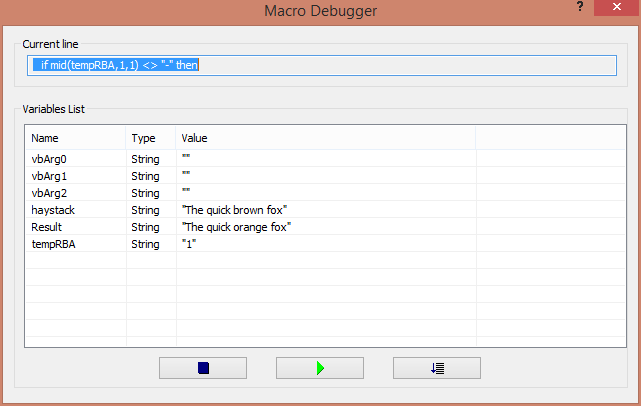
You can add the debug instruction in your macro code to display a dialog box that allows checking the list of variables (value and type).
This debug dialog box allows even to run the macro line per line.
haystack = "The quick brown fox"
Result = Replace(haystack, "brown", "orange") 'returns "The quick orange fox"
tempRBA = "1"
debug
if mid(tempRBA,1,1) <> "1" then result = MsgBox("Macro Error", vbOK, "Continue") endif
|
Macro debugger Dialog box